Why Is My Printer Ink Not Drying?
Printer ink that stays wet usually points to the paper, ink coverage, or a mismatched media setting. Use paper made for your printer, choose the matching paper type, and let the page dry before stacking it.
On this page (9 sections)
- Why is printer ink not drying?
- What should you check first when ink smears?
- Could the paper be causing wet or smearing prints?
- Which printer settings can help ink dry?
- Does the print mode affect drying time?
- How should you handle a fresh print?
- When is the problem actually toner instead of ink?
- When could a different printer make sense?
- What if the ink still will not dry?
Printer ink that stays wet usually points to the paper, ink coverage, or a mismatched media setting. Use paper made for your printer, choose the matching paper type, and let the page dry before stacking it.
Start with a simple test: print a page with less color coverage on plain paper that your printer supports. If it dries normally, change one setting or paper choice at a time to find what caused the smearing.
Why is printer ink not drying?
Ink can remain wet when the paper cannot absorb it well or the printer lays down more ink than the media can handle. A wrong paper setting can also affect how the printer applies ink.
Coated photo paper is designed to hold ink near the surface for a sharper image, so it may need more time to dry than plain paper. If you use glossy media, confirm that it is made for your printer type.
Paper intended for a different printing process may not accept ink properly.
High coverage can add to the problem. Dark backgrounds, large color blocks, and photos may put more ink on a sheet than text documents do.
What should you check first when ink smears?
Check the paper, the paper type setting, and whether the ink is wet across the whole page or only in certain areas. These clues help narrow down the cause before you change several things at once.
Try these steps in order:
- Confirm the media is compatible. Check the paper package and your printer manual for supported paper types and sizes.
- Match the printer setting to the paper. Choose plain, matte, glossy, or photo paper as appropriate.
- Print one test page. Use a small image or a few lines of text and let it sit flat.
- Reduce ink coverage if your driver allows it. Try a lower quality or ink density setting for a draft.
- Keep fresh prints separate. Don't stack pages until the ink is dry.
If these checks don't help, look through common problems with printers for other signs such as streaks, blank areas, or feed trouble.
Could the paper be causing wet or smearing prints?
Yes. Paper made for a different printer type or printing process may not absorb ink as expected.
Paper weight, surface coating, and finish all affect how a page handles ink.
Use media labeled for your printer, and check its manual for supported thickness and sizes. Glossy and coated sheets often need their own media setting; choosing plain paper can lead to poor results.
For specialty projects, confirm that the paper is intended for the print method you use. Tatu-Derm's tracing paper is made for inkjet stencils and desktop inkjet printers, so it may suit that specific stencil use.
This paper is not a general-purpose fix for wet prints. Use it for stencil work, and follow your printer's paper-loading and setting guidance.
Which printer settings can help ink dry?
Choose the setting that matches the actual paper, then lower print quality or ink density if the driver offers that control. Settings vary by printer, so use the options available in your own software and manual.
A photo paper setting can adjust how the printer handles coated media. But selecting it for plain paper may cause poor output, so don't use a setting just because it sounds like it might slow printing.
For a document with heavy color coverage, try draft or standard quality instead of the highest quality. Print a small sample first and compare it with the original setting.
If you're seeing faint toner marks or uneven laser output rather than wet liquid ink, the issue is different. See why a laser printer may not be dark enough for toner-related checks.
Does the print mode affect drying time?
It can: higher quality modes and large areas of color may use more ink than a quick text print. A lower quality mode can be a useful diagnostic step when a page remains wet.
Print a small test with the same paper and content, then reduce quality by one level. If it dries better, use that mode for routine documents and reserve the higher setting for images that need it.
Don't change several options at once. Keeping the paper constant while changing one setting makes it easier to tell whether the driver or media caused the issue.
How should you handle a fresh print?
Let each sheet dry flat and keep it apart from other pages. Stacking or sliding a fresh print can transfer wet ink to the next sheet or smear the image.
For glossy media, follow the paper maker's drying instructions. Avoid rubbing the surface to test it, since the paper coating or image can be marked even after the ink has begun to set.
If you need to print a batch, let the output tray clear one page at a time when possible. Use a clean, dry surface and avoid placing printed sheets face to face.
When is the problem actually toner instead of ink?
Inkjet printers use liquid ink, while laser printers use toner powder, so wet ink is not the right diagnosis for a laser print. Toner marks, pale areas, or spots call for different troubleshooting.
A laser page that smears when touched may have a toner-fusing or media issue. Check the printer manual and use paper intended for laser printing.
For a laser printer leaving dots or marks, read why a laser printer leaves spots on paper. If you're unsure which consumable your machine uses, see why laser printers don't use ink cartridges and whether laser printers use ink or toner.
When could a different printer make sense?
A printer change makes sense only when your current model cannot handle the media or print volume you need. First compare the manual's supported paper types with the paper causing trouble.
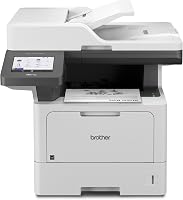
The Brother MFC-L5915DW is a monochrome laser all-in-one with print and copy speeds up to 50 pages per minute, plus scanning and copying. It is designed for office documents, not inkjet photo output.
Choose a laser model only if it fits your regular work. It will not solve a need for color inkjet photos or specialty inkjet stencil printing.
The HP LaserJet MFP M140w is a compact monochrome multifunction laser printer for printing, scanning, and copying black-and-white documents. HP says it prints up to 21 pages per minute single-sided.
These laser printers are options for document workflows, not repair parts for an inkjet. For alignment issues on a Brother laser printer, use this Brother laser printer alignment guide.
What if the ink still will not dry?
If compatible paper and correct settings do not help, check the printer's maintenance guidance and contact the manufacturer if needed. A cartridge or printhead problem is possible, but avoid cleaning or replacing parts without following the model's instructions.
Check for ink smears inside the printer, blocked vents, or repeated marks on the page. Use only cleaning steps described for your printer, since forced cleaning can waste ink or cause damage.
For a practical rule, printer ink not drying usually calls for matching the paper to the printer, matching the setting to the paper, and reducing heavy ink coverage. Choose specialty media such as inkjet stencil paper only for the task it is made for, and consider a monochrome laser printer when your work is mostly black-and-white documents.
Frequently asked questions
Why is my printer ink still wet after printing?
Printer ink may stay wet when the paper coating does not suit the ink, the printer uses too much ink for the media, or the selected paper type is wrong. Confirm that the paper is approved for your printer, choose its actual type in print settings, and let a test page dry before stacking it.
How long should inkjet prints take to dry?
Drying time varies with ink, paper coating, ink coverage, and room conditions, so there is no single wait time for every print. Leave the page flat and separate from other sheets, then check a small printed area gently before handling or framing it.
Can I use glossy paper in an inkjet printer?
Yes, if the paper is made for inkjet printing and its size and weight suit your printer. Select the matching glossy or photo paper setting, print a test page, and allow it to dry as the paper instructions recommend.
Does printer ink dry faster on plain paper?
Often, plain paper absorbs ink differently from coated photo paper, but it may not give the color or finish you want. Use media designed for your printer and the job, then match the paper setting to that media rather than switching paper just to mask a setting problem.