How to Fix Brother Laser Printer Alignment Problems
For the best Brother laser printer alignment fix, first check the paper guides, tray, and print settings. If paper feeds straight but text or colors look shifted, use your model’s calibration or registration steps.
On this page (10 sections)
- How do you fix Brother laser printer alignment problems?
- Why is a Brother laser printer printing crooked?
- Which print settings affect Brother laser printer alignment?
- How do you correct Brother laser printer color registration?
- Can toner or paper cause misaligned output?
- Which printer suits your alignment troubleshooting needs?
- How should you set up and care for a printer during alignment checks?
- What mistakes make alignment problems harder to fix?
- When should you stop troubleshooting and get service?
- How do you choose the best Brother laser printer alignment fix?
For the best Brother laser printer alignment fix, check the paper guides and tray first, then make sure the print settings match the loaded paper. If sheets feed straight but text or colors look shifted, run the calibration or registration steps for your model.
These checks help distinguish a paper-feed problem from an image-position problem. Brother menus and maintenance options vary by model, so follow the on-screen instructions and manual.
How do you fix Brother laser printer alignment problems?
Start with the paper path, then check settings and calibration. This order helps identify whether the sheet is entering crooked or the printed image is out of position.
Remove the stack and check for curled corners, damp sheets, or damage. Fan the paper, tap its edges on a flat surface, and reload it below the tray’s fill line.
Move the guides until they touch the paper lightly without bending it. Push the tray in fully and check that it sits level.
Print a simple page with clear borders. If the page itself is tilted, return to the paper and tray checks; if the sheet is straight but the image is shifted, review settings and registration.
Why is a Brother laser printer printing crooked?
A crooked page often comes from unevenly loaded paper, loose guides, or a tray that is not fully inserted. Fix those basics before changing settings or opening the printer.
Try a fresh, flat sheet in a size the tray supports. Make sure the guides hold it in place without squeezing it, and don’t force paper into the tray.
If the page still feeds at an angle, stop adjusting internal parts and check the model’s manual. For other symptoms that can resemble an alignment fault, see how to fix common printer problems.
Which print settings affect Brother laser printer alignment?
Set the paper size, orientation, and tray in the print dialog to match what you loaded. A mismatch can cause unexpected scaling, margins, or positioning.
Check the print dialog on your computer or phone. Set scaling as intended, such as “actual size” when the document should retain its original dimensions.
Compare the printed margins from side to side and top to bottom. If the page edges are straight but fine details look soft, review what print resolution means in laser printers; resolution affects detail, not how a sheet enters the printer.
How do you correct Brother laser printer color registration?
Use your model’s color calibration or registration routine if it has one. Follow the display prompts, then print a sample to see whether the color layers line up.
Colored outlines or shadows around text and images can point to registration trouble. Look in the maintenance menu for an option such as “color calibration” or “registration,” but don’t assume another Brother model uses the same steps.
If the routine asks you to scan a chart or select a pattern, use the page and instructions shown by the printer. If colors remain shifted, follow the manual’s steps for reseating toner cartridges.
Turn the printer off and let it cool as directed before handling cartridges. Avoid touching the drum surface or transfer belt.
For broader print defects, read how to fix laser printer print quality issues. Owners of the MFC-L3770CDW can also use these model-specific poor print quality checks.
What is the best Brother laser printer alignment check for each symptom?
Use the visible symptom to choose your first check. A tilted sheet points toward paper handling; straight paper with shifted text or colors points toward settings or registration.
| What you see | Check first |
|---|---|
| The whole page is tilted | Paper stack, guides, and tray seating |
| The page is straight, but margins or scaling look wrong | Paper size, orientation, tray, and scaling settings |
| Colored shadows appear around text or images | Model-specific color registration |
| Spots or streaks appear on the page | Toner and print-quality troubleshooting |
Print a second sample with paper from the same stack. If the issue continues, try a fresh sheet of the correct size to see whether the paper itself is contributing.
Can toner or paper cause misaligned output?
Paper can make a page feed crooked, while cartridge or registration issues can shift parts of the image. Check the pattern before replacing supplies.
Use paper that fits the tray and select the matching media setting. Specialty sheets may need a specific loading direction, so check the package and printer manual before printing.
Toner problems more often cause missing areas, streaks, or spots than a uniformly crooked page. If you see marks, learn what can cause spots on laser-printed paper.
Which printer suits your alignment troubleshooting needs?
Choose a printer for the work you do, not as a fix for alignment. A new model won’t correct a crooked tray or the wrong paper setting on an existing printer.
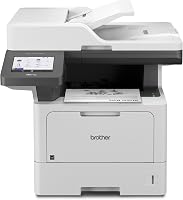
The Brother MFC-L5915DW suits a busy office that prints, copies, and scans many monochrome pages. It prints and copies at up to 50 pages per minute, and includes a 70-page automatic document feeder for two-sided scanning and Ethernet and dual-band Wi-Fi.
Compare inkjet and laser printer speeds if print speed is a deciding factor.
Skip it if you only need occasional, basic printing or want color output.
The HP LaserJet MFP M140w fits a small team that needs wireless monochrome printing, scanning, and copying in a compact printer. It prints up to 21 pages per minute, and supports mobile printing.
Skip it if you need automatic two-sided printing or color output.
Tatu-Derm Inkjet Stencils Tracing Paper is made for compatible desktop inkjet systems and tattoo transfer work. It is not for Brother laser alignment; don’t feed it into a laser printer unless the printer manufacturer explicitly supports that media.
How should you set up and care for a printer during alignment checks?
Use flat, dry paper, load it within the tray limit, and keep the guides snug. These habits reduce common feed problems and make troubleshooting clearer.
Match the paper size and type in the print dialog to what is in the tray. When trying to isolate a fault, change one thing at a time and print a sample after each adjustment.
Don’t use an alignment routine from another printer model. Avoid forcing paper, touching delicate internal surfaces, or opening panels reserved for service.
What mistakes make alignment problems harder to fix?
Changing several settings at once makes it harder to tell what solved the problem. Keep each check focused on the symptom you see.
Don’t run color registration to correct a page that physically feeds crooked. Don’t replace toner just because text is shifted, and don’t assume higher resolution will straighten the sheet.
Avoid specialty paper unless it’s supported by the printer and loaded as directed. If the fault begins with one paper stack, test a fresh, compatible sheet before changing printer settings.
When should you stop troubleshooting and get service?
Get support if pages still skew with correctly loaded paper or color registration remains wrong after the manual’s steps. Repeated jams and mechanical noise are also reasons to stop.
Keep one sample page and note the model number, paper type, and settings. This helps explain whether the sheet feeds crooked or the image is out of position.
Don’t remove parts or open panels that the manual reserves for service technicians. Follow Brother’s support process if the issue persists.
How do you choose the best Brother laser printer alignment fix?
For a tilted page, reload flat paper, snug the guides, and seat the tray fully. For straight paper with shifted text or colors, check print settings and run your model’s registration steps.
Choose a printer based on the work you need it to do: the Brother MFC-L5915DW for higher-volume monochrome office work, or the HP M140w for a small team’s wireless print, scan, and copy needs. For broader context, read the advantages of laser printers, and contact support if the model’s approved steps don’t resolve the fault.
Frequently asked questions
Why is my Brother laser printer printing crooked?
Crooked pages usually point to unevenly loaded paper, loose guides, an overfilled tray, or a tray that is not seated fully. Remove the stack, fan it, align its edges, and reload it below the tray’s fill mark.
If the page still skews, try a fresh, flat sheet and check the printer manual.
How do I align colors on a Brother laser printer?
Use the printer’s color calibration or registration option if your model offers one. Print the requested pattern and follow the display prompts, since menu names and steps vary by model.
If colors remain offset, check the manual for cartridge reseating steps and contact Brother support if the issue continues.
Can toner cause alignment problems?
A cartridge that is not seated correctly can contribute to uneven or missing color, but it usually does not make the whole page skew. Turn the printer off and let hot parts cool as directed, then reseat cartridges only by following the model’s manual.
Don’t touch the drum or transfer belt.
When should I contact Brother support about alignment?
Contact Brother support if pages still skew with correctly loaded paper or color registration stays off after the model’s calibration steps. Keep a sample print and note the model number and steps you tried.
Repeated jams or mechanical noise also call for service.