How to Choose a Photo Scanner with ADF
The best photo scanner with ADF depends on your batch size and photo safety needs. Choose a protected feeder for large photo collections, or a flatbed when careful placement and high detail matter most.
On this page (7 sections)
- What should you look for in a photo scanner with ADF?
- How does a photo ADF feed photos safely?
- When is a flatbed better than an ADF?
- What if you need a small scanner for occasional photos?
- How should you choose between batch speed and photo protection?
- How should you set up and care for a photo ADF?
- Which photo scanner with ADF should you choose?
The best photo scanner with ADF matches your photo sizes, batch volume and tolerance for feeder handling. Choose a protected automatic feeder for large collections, and choose a flatbed when careful placement or unusual originals matters more than speed.
An ADF can turn a stack of standard prints into a repeatable workflow. It can also introduce rollers, dust and alignment issues, so photo safety should come before a fast scan rate.
This choice suits families with boxes of prints, estate projects and anyone who wants digital copies before originals fade or get lost. It suits less well when every photo is fragile, curled or irregular in size.
Batch volume matters because a feeder removes the pause between scans. That saving adds up across hundreds of photos, while one flatbed scan at a time can stretch the same job across many sessions.
Tolerance for feeder handling is the key trade off. Rollers move each print through a path, so sorting, dusting and checking the first scans become part of a safe routine.
Resolution and software also shape the result. A scanner that offers sharing, archiving and enlargement settings lets you plan file size, while enhancement tools can reduce later editing.
Photo sizes should be checked before you buy. Confirm support for your largest prints, postcards, panoramas and any Polaroid photos you plan to digitize.
A protected feeder is the stronger pick for volume. It is designed to handle repeated feeding with less manual placement, provided the photos are in good enough condition for rollers.
A flatbed is the stronger pick for care. Each item rests on glass, so you control position and can pause after every scan.
Neither option is right for every collection. The best fit depends on how many photos you have, how replaceable they are and how much time you can give to preparation.
What should you look for in a photo scanner with ADF?
Look for photo-safe feeding, a useful batch capacity and resolution settings that match your goal. Then compare duplex scanning, software, connection type and the way you plan to organize files.
A practical checklist includes:
- Feeder design: Check whether the scanner is built for photos, documents or single sheets only.
- Protection: A carrier sheet, careful cleaning and gentle handling can reduce risk for delicate prints.
- Batch capacity: A larger batch reduces reloads, but it does not remove the need to sort and inspect photos.
- Resolution: Use lower settings for sharing and higher settings for archiving or enlargements.
- Photo sizes: Confirm that the scanner handles your largest prints, postcards, panoramas or unusual formats.
- Duplex scanning: This helps when the back of a photo contains notes worth saving.
- Software: Enhancement, cropping, rotation, OCR and cloud backup can reduce later work.
- Connection: USB works well at a desk, while Wi-Fi can give you more placement flexibility.
For a broader look at document-focused models, read our digital scanner for documents guide. If you need negatives or slides, a feeder is not enough by itself, so compare flatbed scanners for negatives and slides.
How does a photo ADF feed photos safely?
A photo ADF pulls each print through a path using rollers, so preparation matters. Sort photos by size, remove loose dust and use a carrier sheet when the scanner supports one.
Do not mix badly curled, torn or stuck-together prints into a large batch. Keep the stack aligned, watch the first few scans and stop if a photo begins to skew or feed incorrectly.
A feeder works best with consistent prints. Panoramas, postcards and older photos may need more attention because their shape, thickness or surface can differ from a normal snapshot.
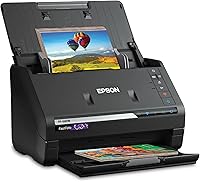
The Epson FastFoto FF-680W includes a carrier sheet and cleaning cloth, plus SafeTouch technology for delicate photos. Its photo workflow supports Polaroid photos, panoramas, postcards and photos up to 8 x 10 in.
The FF-680W is the strongest match here for someone digitizing thousands of photos. Epson describes scanning as fast as 1 photo per second at 300 dpi, while the scanner also supports 600 dpi TIFF archiving and 1200 dpi enlargements.
It can capture an image and handwritten notes on the back in one scan. Its enhancement tools include auto enhancement, color restoration, red-eye reduction, de-skew, crop and rotate.
The scanner also handles documents up to 240 in and includes OCR through Epson ScanSmart. Wi-Fi and USB connectivity give you more placement choices, while the Epson FastFoto app supports voice and text additions and smartphone slideshows.
For step-by-step feeding advice, see how to use a photo ADF scanner.
When is a flatbed better than an ADF?
A flatbed is often better for fragile, valuable or unusual originals that need careful placement. It also avoids sending each photo through rollers, although you must lift the lid and position every item yourself.
The Canon CanoScan LiDE 400 is a flatbed document and photo scanner with 4800 x 4800 dpi resolution. It scans in as fast as 8 seconds and uses one USB Type-C cable for data and power.
Canon includes EZ Buttons and an auto scan mode that detects what you are scanning. Its image enhancements include color restore and dust removal, which can help when preparing older images for digital storage.
The LiDE 400 includes a vertical stand, so it can suit a desk where upright storage matters. Its standard sheet capacity is 1, which reflects a one-at-a-time flatbed workflow rather than a batch feeder.
This flatbed suits people who want control over each photo. You lift the lid, place the print, check its position and then scan, which is slower but calmer for valuable originals.
It also suits users who scan a mix of photos and documents. Auto scan mode reduces the need to choose settings by hand, while the PDF buttons help with multi page documents.
High resolution gives more detail for saving and enlarging. The LiDE 400 offers 4800 x 4800 dpi, which is well above the settings used for quick sharing.
That detail comes with larger files and longer processing. It suits archiving a smaller set of important photos more than rushing through a large batch.
Color restore and dust removal can help older images look cleaner. They do not replace checking the original, so a careful preview before saving is still wise.
The slim design helps in a small workspace. At 7.7 x 14.5 x 0.4 in and 3.6 pounds, it can sit on a desk or be stored upright with the included stand.
One USB Type-C cable handles data and power. That keeps the set up tidy and avoids a separate power brick, though the scanner still needs a computer connection.
Flatbed scanning is manual by design. Each placement takes time, and the lid must be opened and closed for every item.
That time cost is the main trade off against a feeder. For a few special photos it feels manageable, while for hundreds of standard prints it can become tedious.
Care is simple with a flatbed. Keep the glass clean, align prints gently and avoid pressing down hard on fragile originals.
Compare more options in our guide to the best scanner for photos, slides and negatives.
What if you need a small scanner for occasional photos?
A compact single-sheet scanner can suit occasional document work, receipts and ID cards, but it is not the same as a photo batch scanner. Choose it when portability matters more than automatic photo feeding.
The Epson WorkForce ES-50 is a compact and lightweight mobile document scanner. It scans one sheet at a time, is USB-powered, works with Windows and Mac, and can scan documents up to 8.5 x 72 in.
The ES-50 scans a single page in as quickly as 5.5 seconds at 300 dpi for an 8.5 x 11 in sheet. Its automatic feeding mode accepts each new sheet and combines multi-page scans into one file.
Epson ScanSmart software supports review and saving, while included OCR can create searchable PDFs and editable Word and Excel files. The scanner uses USB 2.0 and needs no batteries or external power supply when connected to a computer.
This compact scanner suits occasional documents rather than a full photo archive. It is a practical fit for receipts, ID cards, forms and short multi-page sets.
Portability is its main strength. At 9.44 ounces and 10.7 x 10.7 x 1.3 in, the ES-50 can travel in a bag for work or home office use.
USB power keeps the set up simple. You still need a laptop or computer nearby when you scan.
Single-sheet feeding sets the pace. You insert each page in turn, so a long stack will take longer than a batch feeder.
ScanSmart gives a clear review step. You can check the result before saving, which helps catch a crooked page or a missing sheet early.
OCR adds long-term value for documents. Searchable PDFs and editable Word and Excel files make text easier to find and reuse.
Paper handling is flexible for documents. It scans up to 8.5 x 72 in, so extra-long pages are easier than on some compact models.
That flexibility does not turn it into a photo batch scanner. Delicate or valuable photos are better handled by a photo-focused feeder or a flatbed.
Cloud and TWAIN support suit mixed workflows. You can scan to online storage through the included software or use compatible imaging programs.
Windows and Mac compatibility makes it easy to place in a mixed office. Maintenance sheets are included in the box to keep the feed path clean and scans consistent.
If your main goal is saving scans directly to removable storage, read how to choose a photo scanner that saves to USB. For a smaller footprint, compare our best compact photo scanners.
How should you choose between batch speed and photo protection?
Choose batch speed for a large collection of similar prints, and choose careful flatbed placement for fragile or unusual originals. The right balance depends on how many photos you have and how difficult they would be to replace.
The Epson FF-680W offers the clearest batch workflow here because it can scan up to 36 photos at a time and includes photo-specific protection features. It scans as fast as 1 photo per second at 300 dpi.
Its resolution options match different goals. Use 300 dpi for sharing, 600 dpi TIFF for archiving and 1200 dpi when you plan to enlarge.
Duplex capture adds context that a front-only scan can miss. Handwritten notes, dates and names on the back are often part of the family story.
Batch speed helps when prints are standard and in good condition. You can sort them, load a batch and review the results without placing each one by hand.
Photo protection helps when prints are delicate or varied. A carrier sheet, gentle cleaning and careful sorting can reduce the risk of jams, skew and surface damage.
The Canon LiDE 400 takes more manual work, but its flatbed design and 4800 x 4800 dpi resolution suit careful, detailed scans. Its flatbed path avoids rollers, so unusual or fragile originals can be placed under your direct control.
The Epson ES-50 is for a different job. Its compact body and USB power suit mobile document scanning, but its single-sheet capacity makes it less practical for a large photo archive.
Placement also affects the choice. A wireless feeder can sit away from the computer, while a flatbed and a USB mobile scanner work best near a desk.
Software can tip the balance. Enhancement, cropping, rotation, OCR and cloud backup save time after scanning, but they do not remove the need for good preparation.
How should you set up and care for a photo ADF?
Start with a clean, organized work area and a small test batch. Dust the photos lightly, check the feed path and review the first scans before processing the rest.
Create folders before scanning, such as by family, event or year. Use consistent file names so you can find images later without opening every file.
Choose 300 dpi for quick sharing, 600 dpi for an archive and 1200 dpi when enlargement needs justify larger files. Keep an original archival scan before applying edits or cropping.
A test batch shows problems early. Check for skew, cropping, red eye, faded color and missing backs before you commit to the full collection.
Sorting by size makes feeding smoother. Mixed sizes can cause misalignment, so separate panoramas, postcards and standard prints where needed.
Clean the feeder and rollers as the manufacturer directs. Use a microfiber cloth as directed and follow the manual for roller cleaning intervals.
Keep an unedited master copy. Cropping, enhancement and rotation can be applied to copies, so the original scan stays available.
Stop if a photo skews or jams. Clearing the path gently and cleaning the rollers is safer than forcing the batch onward.
For books, a feeder is not the right tool. See how a book scanner with a cradle handles bound pages, or compare specialized equipment for a 36-inch large format scanner if your originals are much larger than standard photos.
Which photo scanner with ADF should you choose?
Choose the Epson FastFoto FF-680W when you have a large photo collection and want batch feeding, duplex capture and photo-focused handling. Choose the Canon CanoScan LiDE 400 when fragile originals and high-resolution flatbed scanning matter more than speed.
Choose the Epson WorkForce ES-50 for portable, occasional document scanning rather than a true photo archive. The main decision is simple: pick an ADF for volume, a flatbed for careful placement, and a compact single-sheet scanner for mobility.
The FF-680W suits boxes of family photos that need to be digitized in bulk. Batch scanning up to 36 photos, duplex capture and a carrier sheet make it the clear volume pick.
It also suits mixed photo and document projects. OCR, wireless connection and options for sharing, archiving and enlargement cover many daily needs.
The LiDE 400 suits a smaller set of special photos. Its flatbed design, 4800 dpi resolution and image enhancements support careful archiving.
It also suits a desk where space is limited. The slim body and vertical stand help with upright storage, while one USB Type-C cable keeps connections simple.
The ES-50 suits travel and light office work. USB power, a light body and single sheet feeding make it easy to carry and quick to use.
It is not the pick for a large photo archive. Single sheet capacity and document focused handling make volume photo work slow and repetitive.
Match the scanner to the collection first. Count your photos, check their condition and note any unusual sizes before you decide.
Match the workflow to your time second. Batch feeding saves effort, flatbed placement gives control and portability saves space.
That balance is the whole choice. Volume, care and mobility each point to a different model, and the right one is the one that fits your photos and your routine.
Frequently asked questions
What is a photo scanner with ADF?
A photo scanner with ADF uses an automatic document feeder to move photos through the scanner one after another. This can save time on large batches, but you should check photo thickness, feeder capacity, carrier-sheet support and protection features before feeding valuable prints.
Can an ADF scanner damage photos?
An ADF can add handling risk because photos pass through rollers instead of staying still on glass. Use a carrier sheet when supported, remove dust, avoid damaged prints and follow the scanner's size and media guidance before processing irreplaceable photos.
Is a flatbed scanner better for old photos?
A flatbed scanner can suit old, fragile or unusual photos because each item rests on glass during scanning. It usually requires more manual placement than an ADF, so it may take longer when you have hundreds of standard prints.
What resolution should a photo scanner with ADF use?
Use 300 dpi for convenient sharing, 600 dpi for archiving and higher resolution when you plan to enlarge an image, if the scanner supports those options. Higher settings create larger files and can slow a large batch, so match resolution to the final use.