Document Scanners: The Complete Buying Guide
A digital scanner for documents should match your page volume and document types: choose a sheet-fed model for stacks, a flatbed for books and delicate originals, or a mobile scanner for occasional pages away from a desk. Check OCR, software compatibility and connection needs before you buy.
On this page (10 sections)
- What kind of digital scanner for documents fits your pages?
- When should you choose a sheet-fed scanner?
- When is a flatbed the better document scanner digital option?
- What should you check before buying a digital scanner for documents?
- Do you need a mobile or desktop document scanner?
- Which scanner features matter for photos, cards and unusual pages?
- How do you compare scanner resolution and speed?
- How should you maintain a document scanner?
- Explore document scanners by topic
- What should you decide before choosing a document scanner?
A digital scanner for documents turns paper pages into files you can save, search and share. Pick a sheet-fed model for frequent batches, a flatbed for books and delicate pages, or a compact mobile scanner for occasional work away from your desk.
Start with the originals you scan most often: loose letters, receipts, ID cards, photos or bound pages. Then compare feed style, software, connection and desk space.
If cards and paper documents are both part of your routine, our best scanner for documents and cards guide focuses on those mixed workloads.
What kind of digital scanner for documents fits your pages?
Choose a scanner by how the original can be fed. Sheet-fed scanners suit loose pages, while flatbeds hold each original in place and can handle material that should not pass through a feeder.
Learn about ADF document scanners if you scan stacks regularly.
| Scanner type | Works well for | Check before buying |
|---|---|---|
| Sheet-fed | Loose pages and repeated multi-page work | Supported paper sizes, feed limits and whether it handles cards |
| Mobile single-sheet | Receipts, forms and pages scanned away from a desk | Power source, software and computer compatibility |
| Flatbed | Photos, books and fragile or unusual pages | Glass size, lid movement and document thickness |
| Photo and document | Print collections alongside paperwork | Photo handling, batch workflow and file options |
| Multi-function printer scanner | Occasional scanning alongside printing | Scan workflow, software and whether a separate scanner better fits your workload |
A feeder can save repeated placement when you scan loose pages. It is less suitable for a bound book that cannot lie flat or an original that should not be pulled through a mechanism.
A flatbed asks you to position each page by hand. That can take longer for a stack, but it offers a stable surface for a photo, book page or single delicate document.
Is a document scanner device different from a printer scanner?
A standalone document scanner device is focused on scanning, while a printer scanner combines scanning with print and often copy functions. Choose a dedicated scanner when your scanning habits call for a particular feed style, mobile size or software workflow.
An all-in-one printer may be convenient if scanning is occasional and the printer already has a suitable scanner. A separate device can make more sense when you scan often, need to take it with you or want a flatbed for originals that do not suit the printer's feeder.
Avoid choosing by the word “scanner” alone. Check whether the machine can handle your document size, page volume and computer or phone setup.
When should you choose a sheet-fed scanner?
Choose a sheet-fed scanner when you regularly scan separate loose pages and want to avoid lifting each page on and off a glass surface. Check whether the model feeds one sheet at a time or offers a workflow for a stack.
Some compact models use automatic feeding mode to combine pages into one file as you insert them. That helps with a multi-page task, but it is different from placing a stack into an automatic document feeder and walking away.
For example, Epson's WorkForce ES-50 is a USB-powered, single-sheet mobile scanner. Epson says it can scan a single page in as fast as 5.5 seconds and create searchable PDFs and editable Word or Excel files with included OCR.
Brother's DS-640 is another mobile option. Brother says it scans color and black-and-white documents at up to 16 pages per minute, supports Windows, Mac and Linux, and can scan to destinations such as a computer, cloud service, email or OCR workflow.
These examples suit mobile or single-page scanning. If you expect to process large batches, compare dedicated desktop document scanners and confirm their feeding workflow before deciding.
When is a flatbed the better document scanner digital option?
A flatbed scanner is the better fit when you scan books, photos or originals that should stay still. Place each item on the glass, close the lid where possible, and scan it without feeding the original through rollers.
Flatbeds work one page or item at a time, so they can be slower for a thick stack. Their flexible surface is useful when the page is bound, delicate or an unusual shape.
The Canon CanoScan LiDE 400 is a flatbed model for documents and photos. Canon describes it as having 4800 x 4800 dpi resolution, five built-in EZ buttons and scan times as fast as 8 seconds; it connects with an included USB Type-C cable.
For more options, compare best flatbed scanners for computers. If you scan a bound book often, a best book and document scanner guide can help you focus on book handling.
What should you check before buying a digital scanner for documents?
Check document handling, software, connection and placement before comparing extra features. A scanner that cannot handle your originals or connect to your computer will not fit your everyday workflow.
Which pages and materials will you scan?
Write down the page types you handle in a typical week. Include paper sizes, long receipts, business cards, ID cards, photos and any bound or delicate originals.
Then check the scanner's supported sizes and media. A scanner designed for loose paper may not fit an embossed card or a fragile photo; confirm that the model supports the materials you plan to use.
For a mix of photos and paperwork, see our best scanner for documents and photos guide. If receipts are your main workload, compare options in best scanners for receipts and documents.
Do you need OCR and searchable files?
OCR turns printed words in an image into text your computer can search or edit. Choose it if you need to find names or figures in an archive, or want to reuse text from scanned pages.
Check the exact output options. A scanner may create searchable PDFs, editable office files, or both, depending on its software and operating system.
A scan can still be useful without OCR if you mainly need a picture of a document. For long-term records, decide how you will name, sort and back up files before you start scanning.
Which connection and software should you use?
Choose the connection that fits where and how you scan. USB suits a direct computer setup; wireless can make device placement more flexible, while a phone-based workflow may rely on a companion app.
Verify compatibility with your computer before buying. If you use a Mac, our guides to best document scanners for Mac and how to use a scanner on Mac cover selection and setup.
Windows users can compare best document scanners for PC.
If your work depends on a specific connection, see our guides to best document scanner with USB-C and best USB document scanners. Linux users should check driver support; our best document scanner for Linux guide focuses on that question.
Do you need a mobile or desktop document scanner?
Choose a mobile scanner if you scan at more than one location or have limited desk space. Choose a desktop model if it will stay in one place and your regular work needs a larger or more capable feeding setup.
A mobile scanner often handles one page at a time and connects directly to a computer. It can suit receipts, forms and travel paperwork, but repeated manual feeding may feel slow if you routinely scan large batches.
A desktop scanner takes up a permanent spot, so measure the space and check how pages enter and leave the device. Our best portable document scanners and best desktop document scanners guides compare those setups.
Wireless can help when you need flexible placement or a phone-based workflow. Review our best wireless document scanners guide, and check the app and device compatibility that matters to you.
Which scanner features matter for photos, cards and unusual pages?
Look for specific handling features that match your originals, rather than assuming every document scanner treats them the same way. Cards, old photos, slides and oversized sheets can call for different equipment.
For ID cards and business cards, confirm the supported thickness and feeding path. The Brother DS-640 supports business cards and several types of plastic card, while its compact, single-sheet setup is aimed at mobile scanning.
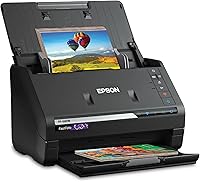
For photo collections, a scanner made for both documents and photos may offer a more suitable workflow. Epson's FastFoto FF-680W can batch-scan up to 36 photos, and Epson says its app supports organizing and sharing photos; its document scanning software includes OCR and supports documents up to 240 inches long.
If you scan slides or negatives, look for a scanner designed for transparent film. Our best scanners for photos, slides, and negatives guide covers that category.
For larger originals, compare supported width and length rather than relying on the scanner's name. See best large format scanners for options aimed at oversized pages.
How do you compare scanner resolution and speed?
Compare resolution and speed against the job you need done. A higher number is not automatically useful if your scans are ordinary office pages and your main need is fast file handling.
For readable text, focus on whether the scanner and software produce clear, searchable files for your documents. Photos and images may need more detail, so compare the scanner's stated resolution and available image features.
Speed figures can describe different tasks, such as a single page or a batch of photos, and may depend on settings or computer performance. Compare like with like, and consider whether you feed pages one at a time or scan a group.
How should you maintain a document scanner?
Keep the scanner clean and follow the manufacturer's instructions for rollers, glass and other parts that touch paper. Dust or marks can show up in scans, so clean the areas you use with supplies and methods approved for that model.
Do not spray cleaner directly onto the scanner or use a rough cloth on the glass. Check the manual for safe cleaning steps and replacement intervals for wear parts.
For supplies and care advice, see our best scanner cleaning kits guide. If you use a Canon model, our how to use a Canon document scanner guide covers a related setup workflow.
Explore document scanners by topic
- Best Scanners for Mac
What should you decide before choosing a document scanner?
Choose by the originals you scan most and the way you work. A mobile single-sheet scanner suits occasional pages on the go, a flatbed suits books and delicate items, and a desktop sheet-fed model is worth comparing for recurring batches.
Pick the Epson WorkForce ES-50 if you want a compact USB-powered scanner with OCR for single pages. Consider the Brother DS-640 if Linux compatibility and card handling matter, the Canon CanoScan LiDE 400 for flatbed document and photo scanning, or the Epson FastFoto FF-680W for a photo-heavy workflow that also includes documents.
If price changes your shortlist, check current options in our best document scanner deals guide. You can also compare best Brother document scanners, best HP document scanners, best Epson document scanners and best Ricoh document scanners.
For phone-only receipt capture, see how to scan receipts on an iPhone. Pick the scanner that fits your page volume, connection and originals, then set up a clear folder and file naming system before building a larger digital archive.
Frequently asked questions
What type of scanner is best for documents?
A sheet-fed scanner suits recurring batches of loose pages, while a flatbed is better for books, bound material and delicate originals. Choose a mobile single-sheet scanner for occasional pages on the go.
Check whether the scanner's software can create searchable PDFs if you need to find text later.
Is a document scanner better than a printer scanner?
A dedicated document scanner can be a better fit if you scan often, need a compact mobile device or want a feed designed for separate pages. A printer's built-in scanner can be enough for occasional copying and scanning.
Compare how many pages you handle and the software you need.
What does OCR do in a document scanner?
Optical character recognition, or OCR, turns text in a scanned image into searchable or editable text. The result depends on the original's print quality, layout and the software.
Look for OCR support if you need searchable PDFs or want to edit scanned documents.
Can a document scanner scan photos?
Some document scanners also handle photos, but a sheet feeder may not suit fragile or curled prints. A flatbed gives you a stationary glass surface for one photo at a time, while a photo-focused scanner may offer batch scanning and image tools.
Check the supported media and handling guidance.
Should I choose USB or wireless scanning?
Choose USB when you want a direct computer connection and a simple desk setup. Wireless can give you more placement flexibility and may support scanning through an app, but check which devices and software it supports.
Consider where you will save files and who needs access.