How to Fix Laser Printer Print Quality Problems
Faint, uneven, streaked, or spotted laser prints usually point to low toner, unsuitable paper, a print setting, or a worn or dirty imaging part. Check the simplest causes first, then follow your printer manual before cleaning or replacing parts.
On this page (8 sections)
- What causes laser printer issues with quality?
- Why are laser prints faint or washed out?
- What should you check when print quality is uneven?
- Why does a laser printer leave spots or repeating marks?
- Why does toner smear or rub off the page?
- How can resolution and speed settings affect output?
- Which printer may suit frequent monochrome printing?
- What should you do if the problem continues?
Faint, uneven, streaked, or spotted laser prints often come from low toner, unsuitable paper, a print setting, or an imaging part that needs attention. Check toner and settings first, then use your printer's manual to guide any cleaning or part replacement.
Make one change at a time and print a fresh page after each check. This helps show whether the cause was a simple setting or a recurring hardware issue.
What causes laser printer issues with quality?
The most common causes are toner supply, paper condition, print settings, and wear or dirt on parts that form and fuse the image. A page's pattern can help narrow down which one to check.
A page that is evenly pale may point to low toner or a density setting. A narrow repeated stripe, spots, or marks in the same places may point to a cartridge or imaging component.
Start with the printer's status screen or software. If it reports an error or a supply is near empty, follow the manufacturer's guidance before taking the printer apart.
For a broader checklist that includes paper jams and connection problems, see how to fix common problems with printers.
Why are laser prints faint or washed out?
Check the toner level, toner-saving mode, and print density setting when the whole page looks too light. These checks are quick and don't require opening the printer.
If toner is low, replace it with a cartridge approved for your model. If you recently changed the cartridge, confirm that it is seated correctly and that any protective material was removed as instructed.
Also check whether the document itself uses light gray text or thin lines. Print a known dark text page to see whether the problem affects all jobs or just one file.
Can a print setting make laser output look faint?
Yes, toner-save or draft settings can make output lighter. Open the printer preferences on your computer or device and check the quality, density, and toner-saving options.
Choose a normal or standard quality setting for a comparison page. Avoid changing several settings at once, so you can identify which adjustment affects the result.
A device driver may also offer a different paper type or quality option than the printer's own menu. Make sure the selected settings agree.
What should you check when print quality is uneven?
Look at the page pattern and check paper, toner, and alignment settings before replacing parts. Uneven darkness across the sheet can result from a cartridge that isn't seated well or media that the printer cannot handle as selected.
Fan and reload the paper as the manual recommends, keeping the stack within the tray guides. Use dry, flat paper and select its correct size and type in the printer settings.
If text or graphics appear shifted, run the printer's alignment or calibration routine when your model provides one. Follow the screen prompts and use the recommended paper.
For a model-specific walkthrough, see how to fix Brother laser printer alignment problems.
Does paper type affect laser print quality?
Yes, paper type and condition can affect how toner transfers and fuses. Damp, curled, or unsupported media can lead to pale areas, marks, or pages that do not feed cleanly.
Check the printer manual for supported paper weights and types. Then choose the matching media setting before printing labels, envelopes, or specialty sheets.
The Tatu-Derm Inkjet Stencils Tracing Paper is designed for inkjet stencil printing, so it is not a general substitute for paper approved for a laser printer.
Use only media that your laser printer supports. A paper made for inkjet use may not be suitable for the heat and feed path of a laser printer.
Why does a laser printer leave spots or repeating marks?
Repeated spots or marks often need a closer look at the toner cartridge and imaging parts. Note where the marks appear and whether they repeat at regular intervals, then check your model's troubleshooting guide.
Don't touch the drum or fuser unless the manual specifically tells you to. These parts can be sensitive, and the fuser may be hot after printing.
If the printer offers an approved cleaning or calibration routine, run it as directed. For examples of spot patterns and likely causes, read why a laser printer leaves spots on paper.
When should you clean or replace a cartridge?
Clean or replace a cartridge only using the method and supplies your printer maker recommends. A cartridge that is leaking toner, damaged, or repeatedly causing the same defect may need replacement.
Keep replacement supplies compatible with the printer model. Avoid shaking or opening a cartridge unless the instructions say to do so.
If a new cartridge does not change the page, the problem may be elsewhere, such as the drum, transfer system, or fuser. Use the printer's service information to decide whether support is needed.
Why does toner smear or rub off the page?
Toner that rubs off may not be bonding to the paper correctly. Confirm that the selected media type matches the paper and that the paper is approved for the printer.
Try a plain sheet of supported paper for comparison. If it still smears, pause printing and consult the manual because the fuser or another internal part may need service.
Don't touch the fuser or attempt a repair while the printer is warm. Follow the maker's cool-down and maintenance instructions.
How can resolution and speed settings affect output?
A lower quality setting can reduce fine detail, while print speed alone does not explain every quality problem. Choose a suitable resolution for small text and detailed graphics, then compare a page at the printer's normal quality setting.
Read what print resolution means in laser printers to understand how resolution affects image detail. The printer's speed rating describes page output under stated conditions, not a guarantee that every document prints at that rate; see how laser printer speed is measured.
If detailed graphics look jagged but text is clear, check the file and application settings as well as printer resolution. If the entire page is faint, return to toner and density checks.
Which printer may suit frequent monochrome printing?
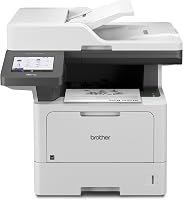
Choose a printer based on the print volume and tasks you need, since a replacement won't fix a maintenance issue in your current device. The Brother all-in-one is a monochrome option with scanning and copying for office workflows.
Its listed features include a 70-page automatic document feeder, dual-band wireless networking, Ethernet, and automatic two-sided printing. Those features may suit shared document work, but they don't diagnose a poor print on another printer.
If you have this specific model, use how to fix poor print quality on a Brother MFC-L3770CDW for a different Brother model's troubleshooting context.
What should you do if the problem continues?
If the same defect remains after checking toner, paper, settings, and approved maintenance steps, use the printer maker's support guidance. Include a sample page and note whether the mark repeats, which settings you changed, and any status messages.
Don't keep printing if toner is leaking, you smell burning, or the printer reports a fuser or other internal fault. Switch it off safely and follow the manufacturer's service instructions.
For a compact wireless monochrome printer with print, scan, and copy functions, the HP LaserJet MFP M140w is one option for small teams.
Its listed features include wireless printing, mobile printing, and single-sided output. Check that the model's functions and connection options match your needs before choosing a replacement.
For laser printer issues with quality, use the symptom to guide your next step: check toner for an evenly faint page, paper and settings for uneven output, and model-specific service guidance for recurring marks or smears. Move to support if approved checks do not clear the defect.
Frequently asked questions
Why is my laser printer printing faintly?
Faint output can come from low toner, an incorrect density setting, unsuitable paper, or a toner cartridge that is not seated correctly. Check the printer's status and settings, then reseat the cartridge as the manual directs.
If the page stays faint, consult the model's troubleshooting guide before replacing parts.
How do I fix streaks on laser printer pages?
First check whether the streak is vertical or horizontal and whether it repeats at the same place on multiple pages. Inspect toner status and use only the cleaning steps in the printer manual.
Repeating marks may point to a cartridge, drum, or fuser issue that needs model-specific service.
Can paper cause poor laser print quality?
Yes. Paper that is damp, curled, damaged, or outside the printer's supported type and weight can cause uneven output, smudges, or feed problems.
Store paper flat and dry, select the matching media setting, and confirm the paper size and type are supported by your printer.
Why does toner rub off laser prints?
Toner that rubs off may not be fusing to the page correctly. Check that the paper type setting matches the media and that the paper is supported by your printer.
If the problem continues on ordinary paper, stop using the printer and follow its service guidance because the fuser may need attention.