How to Use a Canon Document Scanner
Place the page face down on the scanner glass, align it with the guide, and start a scan in Canon's software or with a scanner button. Review the preview, choose a file type and save location, then save the captured document.
On this page (7 sections)
- How do you scan a document with a Canon scanner?
- How do you save a Canon scanner file?
- What should you do if the Canon scan is crooked or unclear?
- Why isn't your Canon scanner showing up on the computer?
- Can a Canon scanner capture cards and both sides of a page?
- Which scanners may suit document scanning?
- How to use a Canon document scanner: what should you remember?
To use a Canon document scanner, place the page face down on the glass, start a scan in Canon's software or with a scanner button, then save the captured file. Choose PDF for documents you want to share or keep together, and choose an image format when you need a separate picture file.
The steps below cover a common flatbed workflow. Button names and software screens vary by scanner model, so check your Canon manual if a control looks different.
How do you scan a document with a Canon scanner?
Place the document face down, align it with the guide, and scan from the computer or scanner controls. Keep the page flat so the whole text area is captured.
- Connect and turn on the scanner, then open Canon's scanning software.
- Lift the lid and place the page face down on the glass.
- Align the page with the corner or edge mark, then close the lid.
- Choose a document preset and file type.
- Preview the scan if the software offers a preview.
- Start the scan, choose a save location, and save the file.
A flatbed scanner handles one page at a time unless its software lets you add more pages to the same file. For a deeper overview of scanner types and features, see our digital scanner for documents guide.
What settings should you choose for a Canon document scan?
Use a document preset and choose a file format that fits what you'll do with the scan. For most text pages, a PDF is convenient to share and store.
Use color if the page contains colored text, stamps, or images you need to keep. Grayscale or black and white can suit plain text, depending on the controls available in your software and the result you need.
Choose a resolution that keeps small text readable without creating an unnecessarily large file. If the scan looks faint or hard to read, try a different document mode or resolution and check the preview before saving.
How do you save a Canon scanner file?
Select a destination folder and a clear file name before saving. A useful name can include the document type and date, such as receipt-2026-10-28.pdf.
Choose PDF for a document that should stay together as a page or set of pages. Choose a common image format when you need to use the scan as a picture in another app.
After saving, open the file from the destination folder to confirm it is readable and complete. If you can't find it, check the folder selected in the scan software and its recent-file list.
How do you scan multiple pages into one PDF?
Scan each page and use the software's add-page or continue-scan control before saving the PDF. The exact wording depends on the Canon model and software.
With a flatbed, lift the lid after each scan, replace the page, and keep the same orientation. Follow the software prompts until all pages are included, then finish and save the file.
If the software saves each page separately, check its PDF or multi-page settings before starting again. Avoid assuming that every scanner has an automatic document feeder; check the model's instructions for supported ways to scan a stack.
What should you do if the Canon scan is crooked or unclear?
Check page alignment, glass cleanliness, and the selected scan mode first. Small setup changes can fix common problems without changing the document.
Wipe dust and fingerprints from the scanner glass with a soft cloth, following Canon's care instructions. Align the page against the guide and keep it flat; don't let a curled edge lift from the glass.
If text appears too light, test a document or grayscale mode and review the preview. If the page is skewed, look for a deskew or straighten option in the software, if available.
For photos as well as paperwork, compare the best scanner for documents and photos to see what features suit both uses.
Why isn't your Canon scanner showing up on the computer?
Confirm power, connection, and model-specific software before trying another scan. A scanner may not appear if the computer lacks its driver or cannot reach it over the selected connection.
For USB, reconnect the cable securely and try another port. For wireless scanning, make sure the scanner and computer are set up for the intended network, then follow the scanner's setup instructions.
If the scanner still doesn't appear, restart the computer and scanner, then check Canon's support information for the model's driver and operating system steps. The best document scanner for PC guide may help if you're comparing other computer scanning options.
Can a Canon scanner capture cards and both sides of a page?
A flatbed can scan a card placed on the glass, while capturing both sides usually means scanning each side separately. Follow the scanner's size and placement guidance to keep small items aligned.
Scan one side, turn the card over, and scan the other side. If you want both images in one file, use the software's page-adding controls and check the saved file afterward.
An automatic document feeder may handle pages differently, but feeder support and duplex scanning depend on the model. Our guide to what duplex scanning on a printer means explains the term, and scanners for documents and cards covers options for smaller originals.
Which scanners may suit document scanning?
Choose a scanner based on how you feed pages, connect it, and save files. A flatbed suits individual pages and photos, while a single-sheet mobile scanner or a document feeder may fit a different workflow.
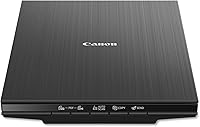
The Canon CanoScan LiDE 400 has built-in buttons for scanning and saving multi-page PDFs, along with a USB Type-C cable for data and power.
The Epson WorkForce ES-50 is a compact, USB-powered option that scans one sheet at a time. Its included software can scan, review, and save documents, and its automatic feeding mode combines multi-page scans into one file.
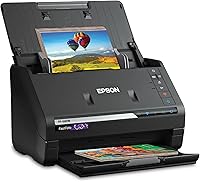
The Epson FastFoto FF-680W can scan documents as well as photos, with included software that has OCR for converting scanned images into readable text. Its double-sided scanning feature can capture a photo and handwritten notes on its back in one scan.
If you need one cable for a USB-C setup, compare the best document scanner with USB-C. For text printing after scanning, our guide asks is toner better than ink for text documents?.
How to use a Canon document scanner: what should you remember?
Place the page carefully, select the right file type, and check the saved scan before sharing it. If you scan several pages, use the software's page-adding option and confirm they appear in the same file.
Choose the CanoScan LiDE 400 for a flatbed workflow with built-in scan and PDF buttons. Consider the ES-50 if you want a compact single-sheet scanner, or the FastFoto FF-680W if you also need to digitize photos.
For computer-specific steps, see how to use a scanner on Mac. Keep your Canon model's manual nearby for its exact button names and setup instructions.
Frequently asked questions
How do I scan a document on a Canon scanner?
Place the document face down on the glass, align it with the corner guide, and close the lid. Open Canon's scanning software, select a document mode and file type, preview the page if available, then scan and save it to a folder you can find.
How do I save a Canon scan as a PDF?
Choose PDF as the file type in the scanning software before scanning, then select a folder and save. For multiple pages, look for an option to add pages or continue scanning before you finish the file; the exact controls vary by Canon model and software.
Can I scan multiple pages into one file?
Yes, if your scanner and software support adding pages to one file. Scan the first page, choose the option to add or scan another page, and repeat before saving the finished PDF; a flatbed scanner may require you to place each page on the glass by hand.
Why is my Canon scanner not detected?
Check that the scanner is on and connected, then confirm the computer has the driver or scanning software for that model. For a USB connection, try another port and reconnect the cable; for wireless scanning, check the network connection and follow the model's setup steps.