9 Best Brother Laser Printers for Windows 11 (November 2026)
The best Brother laser printers for Windows 11 include the Brother HL-L2405W Wireless Compact Monochrome Laser Printer for simple home printing, the Brother MFC-L2820DW Wireless Compact Monochrome All-in-One Laser for copy, scan and fax, and the HP LaserJet Pro 3101fdw (best hp alternative for small teams).
On this page (8 sections)
- Which Brother laser printer for Windows 11 fits your workspace
- How we compared these printers for Windows 11
- Is a Brother laser printer better than HP for Windows 11
- Which connection should you use with a Windows 11 printer
- Do you need an all-in-one or print-only model
- What speed and paper capacity should you buy
- How should you set up and care for a laser printer on Windows 11
- Our verdict for the best Brother laser printer for Windows 11
The best Brother laser printer for Windows 11 for most homes is the Brother HL-L2405W. It prints at up to 30 ppm, uses dual-band Wi-Fi, and holds 250 sheets in a compact body.
Choose an all-in-one Brother if you also scan or copy, and choose Ethernet models for shared office use.
Windows 11 setup is mostly about choosing the right connection and the right feature set. A print-only model suits text-heavy home use, while an all-in-one suits small offices that handle paper forms.
Our score weighs specs, features and buyer feedback against what you are shopping for.
If you want time saving two-sided output, look for automatic duplex on the model you choose. If you share a printer across several Windows PCs, Ethernet can make that job easier.
Our broader guide to best wireless laser printers also helps when placement matters more than a cable.
Our picks at a glance
-
1
 Best for simple home printing
Brother HL-L2405W Wireless Compact Monochrome Laser Printer
9.7/10 our score
See it on Amazon -
2
 Best for copy, scan and fax
Brother MFC-L2820DW Wireless Compact Monochrome All-in-One Laser
9.6/10 our score
See it on Amazon -
3

- 4
 Check it
Brother Professional Laser Printer All-in-One with Scanner
Best for high-volume business printing - 5
 Check it
Brother Professional Laser Printer with Scanner
Best for small business workflow - 6
 Check it
HP Laserjet Pro 3001dw Wireless Black
Best for office printing without scanning - 7
 Check it
Brother MFC-L2820DW XL Wireless Compact Monochrome All-in-One
Best for included toner value - 8
 Best for small office duplex printingCheck it
- 9
 Check it
Brother MFC-L8930CDW Business Color Laser All-in-One Printer
Best for color business documents
Which Brother laser printer for Windows 11 fits your workspace
The HL-L2405W leads for simple home printing, while the MFC models add scanning and copying for small offices. HP models appear here as alternatives when you want similar Windows features from another brand.
A fast ppm rating matters most when you print short documents all day. Tray size matters when you run out of paper during a job.
Scanning features matter when invoices, forms and signed pages come into your office.
Our best brother wireless laser printer guide covers wireless placement in more depth. Our best brother laser printer with ethernet guide focuses on wired office networks.
For shared workgroups, our best brother network laser printer guide explains why stable connections matter.
Brother HL-L2405W Wireless Compact Monochrome Laser Printer: Best for simple home printing
- 30 ppm black and white printing
- Dual-band Wi-Fi and USB
- 250-sheet paper tray
- Manual duplex
- 1200 x 1200 dpi print resolution
A compact print-only Brother for Windows 11 home use, with fast monochrome output and a large tray for its size.
Pros
- Compact footprint
- 250-sheet tray
- Dual-band Wi-Fi
Cons
- Manual duplex
- Print only, no scan or copy
The HL-L2405W suits a Windows 11 home office where most printing is text, forms and everyday documents. It is a print only model, which keeps setup simple when you mainly send pages from a PC or laptop.
It prints one sided pages at up to 30 ppm, so short jobs finish quickly without a long wait. That pace suits bills, school work and simple reports that do not need to be handled in large batches.
Its 250-sheet tray reduces refills compared with small capacity models. That helps when you print a report, a set of labels or a batch of school and work pages across a week.
A larger tray also means fewer interruptions during a longer job. You can load paper once in the morning and return to it later without checking the tray first.
Dual band Wi-Fi lets several devices connect, and USB gives a direct option for one Windows PC. Mobile printing through the Brother Mobile Connect app adds flexibility for phones and tablets when you are away from your desk.
The trade off is clear: duplex is manual, and there is no scanner or copier. Choose this if printing is the main job, and choose an MFC model if you need to scan paper back into your computer.
Manual duplex takes more care with multi page documents. You will need to turn pages over and feed them again, so it suits occasional double sided work better than daily reports.
Brother MFC-L2820DW Wireless Compact Monochrome All-in-One Laser: Best for copy, scan and fax
- 36 ppm print speed claim
- Automatic duplex
- 50-page auto document feeder
- 2.7 in touchscreen
- Wi-Fi, Ethernet and USB
A compact all-in-one that adds duplex, scanning, copying and faxing to fast monochrome printing.
Pros
- All-in-one functions
- Automatic duplex
- Ethernet option
Cons
- Larger than print-only picks
- Toner costs need planning
The MFC-L2820DW suits small offices that need print, copy, scan and fax in one compact unit. Brother lists print speeds up to 36 ppm, with scan speeds up to 23.6 ipm in black for multi page work.
Its automatic duplex printing helps with multi page Windows documents. You can print reports on both sides without standing by to flip the sheets yourself.
The 50 page auto document feeder also handles multi page copy, scan and fax jobs with less manual work. That is useful when you need to digitize a stack of forms rather than one page at a time.
You get dual band Wi-Fi, Ethernet and USB, so the printer can sit on a shared network or connect directly to one PC. A 2.7 in touchscreen supports cloud apps for print and scan tasks.
The trade off is size and weight compared with a print only model. It also needs Brother TN830 or TN830XL toner when supplies run low, so plan for ongoing toner costs.
For care, keep the feeder clear of staples and folded corners before a scan. Check the toner level before a large batch so a job does not stop part way through.
HP LaserJet Pro 3101fdw: Best HP alternative for small teams
- 35 ppm printing
- Print, scan, copy and fax
- Automatic duplex
- Auto document feeder
- Wi-Fi, Ethernet and Bluetooth
An HP all-in-one for Windows users who want Brother-like team features without a Brother brand.
Pros
- Fast 35 ppm speed
- Full all-in-one set
- Ethernet and Bluetooth
Cons
- Not a Brother model
- Uses HP cartridges
The HP LaserJet Pro 3101fdw suits Windows users who want small team features without buying Brother. HP lists up to 35 black and white pages per minute in single sided printing for regular office documents.
It adds print, scan, copy and fax, plus automatic two sided printing and an auto document feeder. That mix fits invoices, reports and forms for teams of up to 7 people.
Connectivity includes Wi-Fi, Ethernet and Bluetooth, with wireless printing from PCs, tablets and mobile devices. HP Wolf Pro Security adds customizable protection for shared office use.
The trade off is brand and supplies: it uses HP cartridges with original HP chips. Choose it if you prefer the HP feature set, and choose Brother if you want Brother toner and support.
For shared use, set the security options during setup rather than leaving defaults in place. Keep the feeders loaded with the correct paper size so scans from Windows match the document you expect.
Brother Professional Laser Printer All-in-One with Scanner: Best for high-volume business printing
- 50 ppm print and copy speed
- 70-page auto document feeder
- Single-pass two-sided scanning
- Gigabit Ethernet
- Dual-band wireless
A larger Brother business all-in-one built for busy Windows 11 offices with heavy scanning and printing.
Pros
- 50 ppm speed
- High-volume scanner
- Gigabit Ethernet
Cons
- Large and heavy
- Higher upfront cost tier
The MFC-L5915DW suits busy Windows 11 offices with high print and scan volume. Brother lists print and copy speeds of up to 50 ppm, which is far faster than the compact picks here.
Its 70 page auto document feeder supports high volume scanning at up to 56 ipm single pass two sided. That helps when staff digitize contracts, invoices and multi page files each day.
Gigabit Ethernet and dual band wireless give flexible network options for a shared office. The 5 in touchscreen lets users save shortcuts for common workflows, so repeated tasks take fewer steps.
The trade off is footprint and weight. At 38.3 pounds, it needs a firm, clear space rather than a small shelf.
Choose it for volume, not for a tight home desk. Plan the room before it arrives, including space to open trays, access toner and load the feeder without moving furniture.
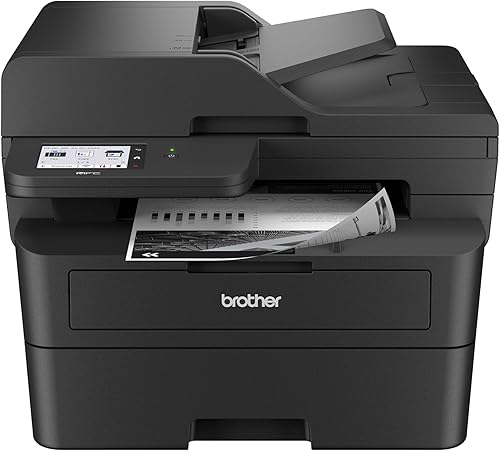
Brother Professional Laser Printer with Scanner: Best for small business workflow
- 36 ppm printing
- 50-page auto document feeder
- Single-pass two-sided scanning
- 3.5 in touchscreen
- Wi-Fi, Ethernet and USB
A mid-range Brother all-in-one that balances speed, a large touchscreen and duplex scanning for small businesses.
Pros
- Duplex scanning
- Large 3.5 in touchscreen
- Ethernet option
Cons
- Print speed below the 50 ppm pick
- Starter toner is limited
The MFC-L2900DW suits small businesses that want a step up from compact all in ones. Brother lists 36 ppm monochrome output, with automatic duplex printing and single pass two sided scanning.
Its 50 page auto document feeder handles multi page jobs for copy, scan and fax tasks. The 3.5 in touchscreen gives direct access to cloud services such as Google Drive, Dropbox and OneNote.
Dual band Wi-Fi, Ethernet and USB make it workable in a shared Windows network. The enhanced fuser design is listed with 22 percent lower electricity use and faster warm up from sleep.
The trade off is that it is not as fast as the 50 ppm business model. Its starter toner is also listed at 700 pages, so early replacement may come sooner than expected.
For daily use, the duplex scanning saves the most time on double sided forms. Check the paper size in Windows before a large scan so pages are saved at the right scale.
HP Laserjet Pro 3001dw Wireless Black: Best for office printing without scanning
- 35 ppm printing
- Automatic duplex
- Wi-Fi, Ethernet and Bluetooth
- 250-sheet capacity
- 1200 x 1200 dpi
A fast HP print-only pick for Windows 11 teams that scan elsewhere and need automatic two-sided printing.
Pros
- Automatic duplex
- Fast office speed
- Bluetooth included
Cons
- No scanner or copier
- HP toner system
The HP Laserjet Pro 3001dw suits small teams that print a lot and scan elsewhere. HP lists up to 35 black and white pages per minute in single sided printing for office reports and documents.
It includes automatic two sided printing, which helps with reports and business documents. Ethernet, Bluetooth and Wi-Fi give several ways to reach the printer from Windows PCs and mobile devices.
A 250 sheet maximum capacity helps reduce refills during regular office use. HP Wolf Pro Security adds customizable settings for shared environments.
The trade off is simple: it does not scan or copy. Choose it for fast print only office work, and choose an all in one if paper documents must come back into digital form.
For setup, pick one connection and test it from each Windows PC before the team relies on it. Keep spare paper for the tray so a busy printing morning does not pause for a refill.
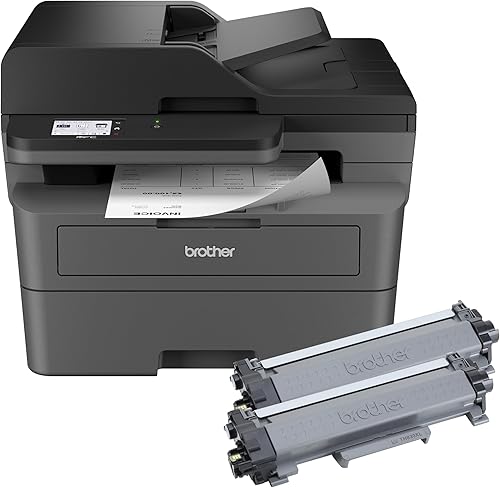
Brother MFC-L2820DW XL Wireless Compact Monochrome All-in-One: Best for included toner value
- Up to 4,200 pages of toner included
- 36 ppm print speed claim
- Automatic duplex
- 50-page auto document feeder
- Wi-Fi, Ethernet and USB
The XL version of a compact Brother all-in-one, with much more toner in the box for heavy early use.
Pros
- Large included toner yield
- All-in-one functions
- Ethernet option
Cons
- Same size as standard version
- Replacement toner still needed later
The MFC-L2820DW XL suits Windows 11 users who want the same compact all in one layout with more toner at the start. Brother lists up to 4,200 pages of toner included, described as six times more than the standard MFC-L2820DW.
It prints at up to 36 ppm in the listed claim, with automatic duplex and a 50 page auto document feeder. That covers copying, scanning and faxing for small offices that handle paper forms each week.
Dual band Wi-Fi, Ethernet and USB support shared or direct use. The 2.7 in touchscreen also supports cloud print and scan services for documents stored online.
The trade off is that the body is the same compact size as the standard model, so capacity does not grow. Choose the XL if you print heavily at first, and choose the standard model if included toner matters less.
For care, track toner use from the start so you know when a replacement is due. Keep the feeder clear of damaged pages before a long scan or copy job.
HP LaserJet M207dw: Best for small office duplex printing
- 28 ppm printing
- Automatic duplex
- Dual-band Wi-Fi
- Ethernet and USB
- 150-sheet capacity
A smaller HP duplex printer for 1 to 5 people who print everyday black and white documents on Windows.
Pros
- Automatic duplex
- Compact office size
- Ethernet included
Cons
- Slower than 35 ppm picks
- 150-sheet capacity only
The HP LaserJet M207dw suits small offices of 1 to 5 people who need reliable duplex printing. HP lists up to 28 black and white pages per minute in single sided printing for everyday work.
Its automatic duplex is the main reason to choose it over slower manual models. Dual band Wi-Fi detects and resolves connectivity issues, while Ethernet and USB add backup options.
The printer fits everyday black and white documents, brochures and presentations. A 150 sheet capacity is smaller than the 250 sheet picks, so refill planning matters more.
The trade off is speed and capacity compared with 35 ppm office models. Choose it for compact duplex printing, and choose a larger Brother or HP model for heavier daily volume.
For setup in Windows, check that duplex is enabled in the printer settings before you print a long file. Keep an eye on the tray during batch jobs so paper does not run out mid document.
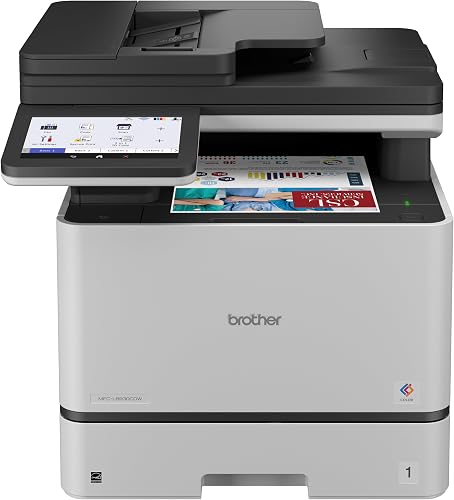
Brother MFC-L8930CDW Business Color Laser All-in-One Printer: Best for color business documents
- 33 ppm color and black printing
- Automatic duplex
- 80-page auto document feeder
- 7 in color touchscreen
- Dual-band Wi-Fi and Gigabit Ethernet
A color Brother all-in-one for Windows 11 users who need color output, duplex scanning and strong network options.
Pros
- Color printing
- High-speed duplex scanning
- Large touchscreen
Cons
- Large and heavy
- Color toner costs more
The MFC-L8930CDW suits Windows 11 businesses that need color, not only monochrome text. Brother lists print and copy speeds of up to 33 ppm for color and black output.
Its 80 page auto document feeder supports two sided scanning up to 104 ipm. A legal size glass also helps with larger paper documents that do not go through the feeder.
Dual band wireless and Gigabit Ethernet support shared office networks. The 7 in color touchscreen allows customized shortcuts for frequent print and scan tasks.
The trade off is size, weight and cost of color supplies. At 71.2 pounds, it is a fixed business machine rather than a portable home printer.
Choose it when color output is a real need. Plan for separate handling of color and black jobs so toner use matches the pages you actually print.
For care, keep the feeder and glass clean for sharp scans of forms and contracts. Confirm paper settings in Windows before color batches, since the wrong size can waste supplies.
How we compared these printers for Windows 11
We compared print speed, duplex type, scanning features, tray capacity, connectivity and toner systems. We also checked which models suit home use, small teams and shared networks.
We weighted Windows-friendly setup choices such as Wi-Fi, Ethernet and USB across the group. A model with more connection options gives you a backup if one method fails in your office.
Our advantages of a laser printer guide explains why laser models suit text-heavy Windows work. Our disadvantages of a laser printer guide covers the limits, including color, toner and size.
Is a Brother laser printer better than HP for Windows 11
Brother is better if you want Brother toner, Brother Mobile Connect and a broad monochrome range. HP is better if you want HP Wolf Pro Security, Bluetooth on some models and HP Smart Shortcuts.
Both brands here offer automatic duplex, Ethernet and wireless printing on many models. The real difference is supplies, support and the features you will use each week.
Choose Brother for the HL-L2405W, MFC-L2820DW and MFC-L5915DW range. Choose HP for the LaserJet Pro 3101fdw, 3001dw and M207dw if their security or app features fit your team.
Think about your toner system first. Each brand uses its own cartridges, so a lower cost printer can cost more over time if you print in high volume.
Think about support as well. Brother models here include free online, call or live chat support for the life of the printer in some listings, while HP models rely on HP support and HP supplies.
Check the jobs you do most often. A scanner matters if you handle signed forms, while Bluetooth matters only if phones and tablets print to the machine each day.
Check placement too. Ethernet helps a shared printer stay steady in an office, while Wi-Fi helps a home printer sit where space allows.
For Windows 11, both brands work with PCs through Wi-Fi, Ethernet or USB on the models listed here. The best choice is the one whose app, supplies and connection options match your habits.
Do not choose on brand alone. Match the speed, duplex type, tray size and functions to the pages you print, scan and copy in a normal week.
If you already use one brand of toner, staying with that brand can save confusion. If you are open to either, compare the full feature set before you decide.
Which connection should you use with a Windows 11 printer
Use Wi-Fi when the printer must sit away from your router or desk. Use Ethernet when several Windows PCs share the printer all day.
Use USB when only one computer prints and you want the simplest link.
Dual band Wi-Fi helps avoid crowded 2.4 GHz networks in busy homes. Ethernet helps when Wi-Fi signal is weak or when print jobs must stay steady during office hours.
Many picks here offer more than one option. That flexibility matters because you may move a printer later, even if your first setup is wireless.
For a shared office, Ethernet is often the calmer choice. A cable does not depend on signal strength, and it can keep a busy printer reachable for every PC on the network.
For a home office, Wi-Fi is often enough. Place the printer within a clear range of the router, then test printing from the rooms where you actually work.
USB still has a place. It suits one Windows PC that stays in one spot, and it avoids network setup when a printer is used for occasional pages.
Check your Windows settings after you connect. Add the printer by the correct method, print a test page, and confirm the paper size before a large job.
If jobs fail to appear, first check the connection you chose. A printer on Wi-Fi may need the same network as the PC, while an Ethernet printer needs a working network port.
Keep the cable or wireless details in mind if you rearrange a room. A printer that moves from a desk to a shelf may need a new test from each Windows device.
Do you need an all-in-one or print-only model
Choose print only if you print text from Windows and rarely handle paper originals. The HL-L2405W, 3001dw and M207dw fit that pattern, with different speeds and duplex options.
Choose an all-in-one if you scan signed forms, copy IDs or fax documents. The MFC models and HP 3101fdw add feeders, flatbeds or fax features for those tasks.
If you need dual trays for different paper types, our best brother laser printer dual tray guide helps you compare that option. For small business buyers, our best brother laser printer for small business guide focuses on team workflow and volume.
What speed and paper capacity should you buy
Speed in ppm tells you how fast a model prints under ideal conditions. A 30 ppm printer suits normal home use, while 36 ppm or 50 ppm helps with shared office queues.
Tray capacity tells you how often you refill paper. A 250 sheet tray reduces interruptions for reports and batches.
A 150 sheet tray suits lighter printing but needs more checks.
Duplex also affects real speed for multi page jobs. Automatic duplex saves the time of turning pages and re feeding them by hand.
For home use, 28 to 30 ppm is usually enough for forms, bills and short reports. You may print a few pages at a time, so the wait between jobs matters as much as top speed.
For a small office, 35 to 36 ppm helps when several people print through the day. A shared queue builds up fast if each job takes longer than expected.
For high volume work, 50 ppm changes the rhythm of the day. Staff can print a full set of documents and return to other tasks without watching the printer.
Capacity matters in the same way. A 250 sheet tray can carry a day of printing for many homes, while a 150 sheet tray needs a refill sooner in a busy office.
Match speed and capacity to your habit, not to the largest number on the page. A faster printer with a small tray can still slow you down if you refill it all day.
How should you set up and care for a laser printer on Windows 11
Place the printer on a stable surface with room to open trays and replace toner. Connect it by Wi-Fi, Ethernet or USB, then add it in Windows printer settings and print a test page.
Keep paper dry and inside the tray, and use the correct paper size setting in Windows before you print. Check toner levels before large batches so a job does not stop midway.
Clean the exterior with a dry cloth and keep vents clear of dust. Replace toner with the correct cartridge type for your model, since toner systems differ by brand and series.
Our verdict for the best Brother laser printer for Windows 11
Pick the HL-L2405W for simple home printing on Windows 11. Pick the MFC-L2820DW or MFC-L2820DW XL for compact all-in-one work.
Pick the MFC-L5915DW for high-volume business printing and scanning.
Pick the HP models if you want an alternative brand with similar speed, duplex and Ethernet options. Pick the MFC-L8930CDW only when color printing is worth the extra size and supply cost.
For the top pick, start with the HL-L2405W and check its tray size and manual duplex against your habits. If you scan often, move to an MFC all-in-one instead.
Our top 3 picks at a glance
-
1
Best for simple home printing
Brother HL-L2405W Wireless Compact Monochrome Laser Printer
9.7/10 our score
See it on Amazon -
2
Best for copy, scan and fax
Brother MFC-L2820DW Wireless Compact Monochrome All-in-One Laser
9.6/10 our score
See it on Amazon -
3
Frequently asked questions
How do I choose a Brother laser printer for Windows 11?
Start with the jobs you need. Choose print only for simple home documents, and choose an all-in-one if you scan or copy often.
Then check duplex, Ethernet, tray size and speed against your normal print volume.
Is Wi-Fi or Ethernet better for shared Windows printing?
Ethernet usually gives a more stable connection for shared office printing, while Wi-Fi gives more placement freedom. Many Brother and HP picks here offer both, so you can start wireless and move to a cable later.
Do I need automatic duplex for Windows 11 printing?
Automatic duplex helps if you print reports, invoices or contracts more than a few pages at a time. It saves paper and time compared with manual duplex, where you must flip pages yourself.
Are monochrome laser printers good for Windows 11 home offices?
Yes, if most of your pages are text. Monochrome models often print fast and keep toner use focused on black pages, but they cannot print color photos, charts or marketing material.


