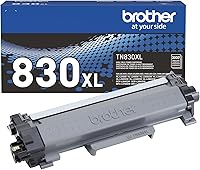
How to Replace Toner in a Brother HL-L2405W
For a Brother HL-L2405W toner replacement, remove the drum and toner assembly, release the exhausted toner cartridge, and fit a compatible replacement. The toner cartridge and drum are separate parts, so keep the drum and install the new toner into it.
On this page (6 sections)
For a Brother HL-L2405W toner replacement, remove the drum and toner assembly, release the exhausted cartridge, and fit a compatible replacement. The toner and drum are separate parts, so you usually keep the drum and replace only the toner cartridge.
How do you replace toner in a Brother HL-L2405W?
Take out the combined drum and toner assembly, open the old toner, and install a compatible cartridge in its place. Keep the printer's manual nearby in case its instructions differ for your model or firmware.
- Turn on the printer and open its front cover.
- Pull out the drum and toner assembly using its handle.
- Press the green lock lever to release the toner cartridge from the drum.
- Remove the old cartridge and unpack the replacement.
- Remove the replacement cartridge's protective cover, if it has one.
- Slide the new toner cartridge into the drum until it locks in place.
- Put the assembly back in the printer and close the front cover.
Handle the cartridge carefully and avoid touching the drum's surface. If toner spills, follow Brother's cleanup guidance; don't use hot water on toner.
Is the toner cartridge the same as the drum?
No. The toner cartridge and drum are separate components, even though they connect as one assembly inside the printer.
Toner supplies the powder used to form text and images, while the drum is the part that transfers the image during printing.
For a toner replacement, release the old cartridge from the drum and attach a new compatible cartridge. Don't discard the drum just because the toner is exhausted; replace it only when the printer indicates that it needs replacement or its manual advises it.
How do you confirm a replacement cartridge fits?
Check the exact cartridge number against Brother's compatibility guidance for the HL-L2405W. For check printing on a related model, see MICR toner for the HL-L2460DW.
A Brother-branded cartridge may still be made for other printer models.
The three cartridges below are Brother toner models, but their listed compatible printers do not confirm fit with the HL-L2405W. For a color Brother model, compare HL-L3300CDW toner cartridges.
Check the printer manual or Brother support before ordering any of them.
If you want a broader look at Brother TN660 toner options, keep in mind that a cartridge's fit depends on the specific printer model. For related instructions, see how to replace toner in a Brother MFC-L2820DW.
What should you check after installing toner?
Confirm the assembly is seated, the front cover is fully closed, and the printer no longer shows a toner warning. If the warning stays on, remove and reinstall the assembly, checking that the new cartridge locked into the drum.
Check that you removed any protective cover from the replacement cartridge. If the printer still reports a problem, verify the cartridge number and consult the manual or Brother support rather than forcing the assembly into place.
For another model-specific comparison, read about toner for Brother HL-L2480DW printers. Color laser models use different cartridges, so see toner for Brother HL-L3290CDW printers if that's the model you own.
When should you replace the drum too?
Replace the drum only when the printer calls for it or the manual says it is due. A toner warning by itself means the cartridge needs attention, not that both parts must be discarded.
Keep the printer model and cartridge number handy when ordering supplies. If you're weighing a laser printer against another type, our guide explains whether a laser printer can replace an inkjet printer.
What is the safest way to finish a Brother HL-L2405W toner replacement?
For a Brother HL-L2405W toner replacement, change the cartridge inside the drum assembly and verify the exact cartridge model first. Keep the existing drum unless the printer or its manual calls for a drum replacement.
If the toner warning remains after the cartridge is seated and the cover is closed, use Brother's model-specific instructions or contact support. For supplies for another Brother printer, see MFC-L5710DW toner options.
Compatibility checks matter because TN420, TN660, and TN730 are named for other listed printer models, and their fit for the HL-L2405W isn't confirmed here.
Frequently asked questions
Is the toner cartridge the same as the drum in a Brother HL-L2405W?
No. The toner cartridge holds the printing toner, while the drum is a separate part in the assembly.
For a toner change, remove the assembly, take out the old cartridge, and fit a compatible replacement into the existing drum.
Replace the drum only if the printer indicates that it needs replacement.
How do I replace toner in a Brother HL-L2405W?
Open the printer, take out the drum and toner assembly, and release the old toner cartridge using the green lock lever. Unpack a compatible replacement, remove its protective cover, and press it into the drum until it locks.
Reinstall the assembly and close the printer.
How can I tell which toner cartridge fits my HL-L2405W?
Check the cartridge number against Brother's current compatibility information or the printer manual before buying. Toner models that fit other Brother printers, such as TN420, TN660, or TN730, aren't confirmed for the HL-L2405W by their model names alone.
Don't assume a cartridge fits because it is made by Brother.
What should I do if the printer still says toner is low?
Check that the replacement is seated firmly in the drum and that you removed its protective cover. Take the assembly out and reinstall it if needed, then follow the printer's on-screen instructions.
If the warning remains, confirm the cartridge model and consult Brother support or the manual.