How to Scan Receipts on an iPhone
Use your iPhone's Notes or Files app to scan a receipt, check the crop and lighting, then save or share the file as a PDF. A scanning app can add receipt sorting or text recognition, while a separate document scanner suits batches.
On this page (8 sections)
- How do you scan a receipt on an iPhone?
- How can you get a clear receipt scan with your phone?
- Should you use a receipt scanner app on iPhone?
- How should you save and organize scanned receipts?
- When is a separate receipt scanner useful?
- Can you scan receipts without an internet connection?
- How do phone scans compare with flatbed or printer scanners?
- What's the simplest way to keep receipt scans usable?
Use your iPhone as a receipt scanner by scanning the paper in Notes or Files, checking the crop, and saving or sharing the result as a PDF. For an occasional receipt, the phone is enough; a scanning app can help sort records, and a separate scanner can speed up larger batches.
For a readable scan, flatten the receipt on a plain surface and use bright, even light. Check that small print, the date, and total remain clear before you discard the paper or file the image.
How do you scan a receipt on an iPhone?
Open Notes or Files, start a document scan, and point the iPhone camera at the receipt. Keep all four edges in view, then review the automatic crop before saving.
In Notes, open or create a note, tap the attachment or camera control, and choose the scan option. In Files, open the folder where you want the scan, tap the more-actions menu, and choose the document scan option; labels can vary with iOS version.
Hold the phone steady and let the app detect the receipt. If it doesn't capture automatically, use the shutter button, adjust the corners, and save the page.
For a step-by-step workflow using a separate device, see how to use a receipt scanner. The same habits apply: check alignment, image quality, and the saved file.
How can you get a clear receipt scan with your phone?
Use diffuse light, a flat receipt, and a steady camera. These simple steps reduce glare, shadows, and blur that can hide a date or total.
Place the receipt on a dark surface if the paper is white, or a light surface if the paper is dark. Keep the phone parallel to the receipt, and move your hand or body so it doesn't cast a shadow across the print.
Avoid direct flash when it makes thermal paper shiny. If the print looks faint, try turning the receipt slightly or moving to softer light, then inspect the scan at a larger size.
What should you check before saving an iPhone receipt scan?
Check the corners, the full printed area, and the smallest text. Make sure the merchant, date, and total are visible and readable.
Look for a curled edge that the crop may have cut off. If a receipt has several long lines, capture the entire paper rather than cropping out a transaction detail.
Retake a scan if letters merge, a section looks washed out, or the image is tilted enough to make the text hard to read. A legible image is more useful than a smaller file.
Should you use a receipt scanner app on iPhone?
Use a receipt scanner app if you want tools for text recognition, sorting, or expense records. For a few simple scans, the built-in Notes or Files workflow may be all you need.
Apps differ in how they export scans and organize information. Before relying on one, check whether it can save PDF files, export images, and let you review text it extracts from the receipt.
Treat text recognition as a convenience, not a verified record. Compare any extracted merchant name, date, tax, and total against the scanned image before adding the information to a report.
How should you save and organize scanned receipts?
Save each scan in a folder you can find later, and use a consistent file name. Include a date and merchant name when those details are clear.
For example, a name such as 2026-10-20-market-receipt.pdf can be easier to search than a generic scan number. Avoid adding card numbers or other sensitive details to a file name.
Keep the original paper until you confirm the file opens and shows the full receipt. If you send receipts to an accountant or an expense system, use the format and destination they request.
When is a separate receipt scanner useful?
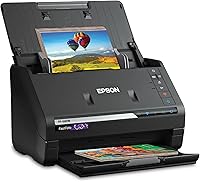
A separate scanner can help when you handle many receipts, want repeatable scans, or need a desk workflow. Choose a mobile single-sheet scanner for occasional batches, or a feeder model when you regularly process stacks of documents.
For a wider look at digital scanners for documents, compare portability, paper handling, and how you plan to save files. Our guide to the best scanners for receipts and documents covers more options.
Is a mobile scanner a fit for a few paper receipts?
A mobile scanner suits someone who wants a compact device for feeding one paper at a time. The Epson WorkForce ES-50 connects to a computer by USB and includes software for reviewing and saving scans.
The Brother DS-640 is another mobile option, with USB power from a connected computer and software for scan destinations that include files, email, cloud services, and OCR.
These scanners need a connected computer for their USB-powered workflow. If you want to use only your phone, stay with a phone scanning app.
Does a feeder scanner help with frequent receipt batches?
A feeder scanner can make sense if your work includes receipts along with invoices, forms, or other documents. The ScanSnap iX2500 has a 100-sheet document feeder, Wi-Fi and USB connectivity, and support for mobile devices.
It takes more desk space than a phone or mobile scanner, so consider how often you'll use the feeder. Compare the best Epson receipt scanners and the best scanners for invoices and receipts if you want a device for regular office paperwork.
A feeder is designed for documents that can pass through it. For fragile, curled, or unusually shaped receipts, check the scanner's handling instructions or use a phone camera instead.
Can you scan receipts without an internet connection?
You can capture a receipt with your phone camera without sending it to a cloud service. Whether text recognition, sync, or export needs internet depends on the app and feature.
Save a local copy if you need access offline, and check the app's settings before enabling automatic uploads. If you use a work account or shared device, follow its record-storage rules.
How do phone scans compare with flatbed or printer scanners?
A phone is convenient for individual receipts, while a separate scanner can suit repeat work or larger documents. Your choice depends on volume, where you want files saved, and whether you need a feeder.
A flatbed holds a page still under a lid, which can help with paper that won't feed smoothly. A printer scanner can be convenient if you already use a multifunction printer; compare the tradeoffs in flatbed scanner vs printer scanner.
If your scanning includes photos as well as paperwork, see the best scanners for documents and photos. For a feeder's role in handling multiple pages, read what an ADF document scanner is.
What's the simplest way to keep receipt scans usable?
For a few receipts, use your iPhone's Notes or Files app, save a PDF, and confirm the full page is readable. Add a dedicated scanning app if you need text recognition or expense organization.
Choose a mobile scanner if you process occasional paper batches at a desk, and consider a feeder scanner if receipts are part of regular document work. Keep the original until you verify that the saved scan is clear and complete.
Frequently asked questions
Can I scan receipts with my iPhone?
Yes. The Notes and Files apps can scan a paper receipt with your iPhone camera and save it as a document.
Put the receipt on a plain, contrasting surface, use even light, and check the crop before saving.
A dedicated receipt app may add text recognition or expense sorting.
How do I save an iPhone receipt scan as a PDF?
Scan the receipt in Notes or Files, review the page, and save or share the scan as a PDF where the app offers that option. If you use a third-party scanner app, check its export settings and choose PDF when you need a file that is easy to send or archive.
Why is my iPhone receipt scan blurry?
Blur often comes from moving the phone, dim light, glare, or a receipt that curls away from the surface. Flatten the paper, brighten the room, hold the phone steady, and tap the receipt on screen if focus needs help.
Retake the scan and zoom in before filing it.
Can an iPhone receipt scan recognize the printed text?
Some scanning apps can recognize text in a receipt image, but results depend on print quality, lighting, and the app. Review the extracted merchant, date, and total before relying on them for records.
Keep the original image or paper until you have checked the saved information.